 how-to
Integrate Different Security Brands: A Step-by-Step Guide
Table of Contents
- Can You Actually Integrate Different Security Brands?
- Security Camera Compatibility: What You Need to Know
- ONVIF-Compatible Security Cameras and Open Standards
- Viewing Different Security Cameras in One App
- Integrate CCTV With Other Security Systems
- Step-by-Step: Setting Up a Mixed-Brand Security System
- Security and Privacy Risks of Mixed-Brand Systems
- Frequently Asked Questions
Last Updated: October 11, 2026
Can You Actually Integrate Different Security Brands?
Partial integration means viewing multiple feeds in one app; full integration means all features work seamlessly across brands, which rarely happens. Most mixed-brand systems require compromise.
Success starts before installation: verify compatibility upfront, understand which features will work and which won't, and plan your network properly.
What Integration Means in Practice
Integration means cameras communicate through a central hub, app, or video management platform.
Not every feature crosses brand boundaries. Two-way audio, motion detection responsiveness, and pan-tilt-zoom controls may vary or be unavailable for certain models. The more brands you mix, the more features you lose.
Where Most Mixed-Brand Systems Fail
The biggest mistake is assuming compatibility means everything works the same way. Compatibility often means cameras coexist on the same network and appear in one app, not that they perform identically.
Common failure points include:
- Uneven video quality across different manufacturers in the same view
- Missing features for certain camera models in the unified app
- Delayed alerts from some brands but not others
- Inconsistent recording schedules across mixed devices
- Network bottlenecks when too many brands compete for bandwidth
Each manufacturer optimizes features for their own ecosystem. When you force devices into a third-party platform, you get basic functionality but lose the polish.
Security Camera Compatibility: What You Need to Know
Understand the two main types: IP cameras and analog cameras. This distinction determines your integration options.
IP Cameras Versus Analog Cameras
IP cameras connect directly to your network via ethernet or Wi-Fi and are the modern standard, easiest to integrate across brands. Analog cameras use coaxial cable to send signals to a DVR and don't connect to your network directly.
IP cameras from different brands can communicate through open standards; analog cameras cannot. Mixed analog and IP systems need a hybrid recorder and lose some unified features.
Wired and Wireless Device Mixing
Mixing wired and wireless cameras is possible but challenging. Wireless cameras often drop frames or lose connection in weak signal areas, creating gaps in recording and lag in unified viewing.
For large properties with spotty Wi-Fi coverage, wireless alone won't work reliably.
The best approach is wired cameras in critical areas and wireless as supplementary coverage, with careful network planning.
ONVIF-Compatible Security Cameras and Open Standards
ONVIF is the most important standard for cross-brand camera integration. Understanding what it does, and what it doesn't, saves you from expensive mistakes.
How ONVIF and RTSP Enable Cross-Brand Communication
ONVIF (Open Network Video Interface Forum) is an open standard letting IP cameras from different manufacturers communicate with third-party software. RTSP (Real Time Streaming Protocol) is the underlying technology that streams video from ONVIF cameras to apps and recorders.
ONVIF-compatible cameras can be discovered automatically, stream to third-party apps, receive basic commands (pan, tilt, zoom), send motion alerts, and work in mixed-brand systems without proprietary software. This means you're not locked into one manufacturer's ecosystem.
What ONVIF Does Not Guarantee
ONVIF compatibility does NOT guarantee advanced analytics, smart features, two-way audio quality, cloud integration, or premium mobile app features, these are proprietary to each manufacturer. ONVIF provides basic video surveillance, not premium features. You must choose between broad compatibility and advanced features.
Viewing Different Security Cameras in One App
The most practical form of integration for most property owners is viewing all cameras in a single app or interface. This requires a video management system that supports ONVIF or can be configured to accept multiple camera types.
Video Management Systems and Centralized Monitoring
A video management system (VMS) collects video feeds from multiple cameras, stores recordings, and provides unified viewing and control. Common options include standalone NVRs, cloud-based platforms, and open-source software. The VMS becomes your central hub, providing single-point access, centralized recording, unified alerts, and simplified user management.
Feature Limitations When Mixing Brands
When you integrate different camera brands through a VMS, certain features become inconsistent or unavailable:
| Feature | ONVIF Support | Typical Limitation |
|---|---|---|
| Live view | Yes | Works across brands |
| Recording | Yes | Works across brands |
| Motion alerts | Partial | Sensitivity varies by brand |
| Pan-tilt-zoom | Partial | Only if camera has hardware |
| Two-way audio | No | Usually brand-specific |
| Analytics | No | Proprietary features unavailable |
| Cloud backup | No | Each brand has separate cloud |
| Mobile app | Partial | VMS app only, not manufacturer app |
The practical impact: you can watch all your cameras in one place, but you can't use all the features each camera offers. You're limited to what ONVIF and the VMS support.
For most property owners, this is acceptable. Live view, recording, and motion detection are the core needs. Advanced features are nice-to-have.
Integrate CCTV With Other Security Systems
True integrated security means connecting surveillance cameras with alarms, access control, and other building systems. This is where integration gets complex, and where professional installation matters.
Network Video Recorders and Third-Party Cameras
A network video recorder (NVR) records video from IP cameras and accepts ONVIF cameras from any brand, avoiding lock-in to one manufacturer. However, NVRs have varying levels of ONVIF support. Before buying, verify your chosen NVR works with your desired camera brands.
Connecting Alarms, Access Control, and Surveillance
Full security integration means surveillance, alarms, and access control communicate: doors trigger recording, motion triggers alarms, restricted access is logged and flagged. This requires a central platform, network connectivity, professional configuration, and ongoing support. Many property owners have separate systems that don't communicate. Professional integration prevents costly incompatibilities.
Step-by-Step: Setting Up a Mixed-Brand Security System
Here's how to actually build a working mixed-brand security system. This process prevents costly mistakes and compatibility headaches.
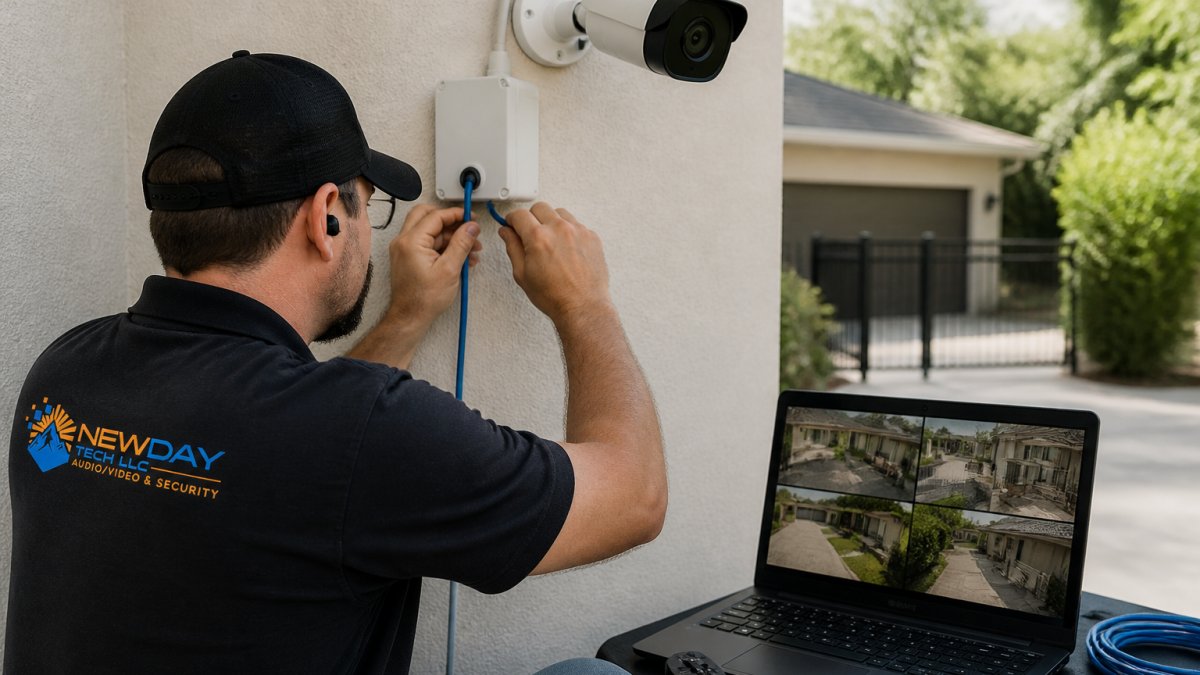
Step 1: Verify Device Compatibility Before Purchase
Before you buy a single camera, create a compatibility checklist. This saves money and prevents returns.
For each camera, verify ONVIF compatibility, IP connectivity, NVR/VMS support, video codec support, resolution, power requirements, and firmware availability. Contact the manufacturer to confirm compatibility with your chosen NVR/VMS in writing.
Step 2: Configure Network and Device Discovery
Assign static IP addresses to all cameras, place them on the same network as your NVR/VMS, ensure adequate bandwidth (5 Mbps per camera for HD), configure device discovery, and test connectivity before mounting. Poor network configuration is the most common cause of integration failures.
Step 3: Add Cameras to a Unified Video Management Platform
Once your network is ready, add cameras to your VMS or NVR.
Process:
- Open your VMS or NVR software
- Select "Add Device" or "Device Discovery"
- Allow the system to scan your network
- Select each camera as it's discovered
- Assign names and locations to each camera
- Configure recording settings per camera
- Test live view for each feed
If a camera doesn't appear during discovery, go back to Step 2. Check network connectivity, IP address, and ONVIF settings on the camera itself.
Step 4: Test Live View, Recording, and Alerts
Before you consider the system complete, test every function:
- Live view from all cameras in the unified app
- Recording is active on all cameras
- Playback works for recorded footage
- Motion detection triggers alerts
- Alerts reach your phone or email
This testing phase catches problems while you can still fix them. A camera that looks good in live view but doesn't record properly is useless in an actual incident.
Step 5: Troubleshoot Common Connectivity Issues
If cameras don't appear or features don't work, work through these fixes:
Camera not discovered:
- Restart the camera and the NVR/VMS
- Verify the camera is on the same network subnet
- Check the camera's IP address using its admin interface
- Ensure ONVIF is enabled in the camera settings
- Add the camera manually using its IP address
Video freezes or buffers:
- Check network bandwidth usage
- Reduce camera resolution or frame rate
- Move the camera closer to your router (for wireless)
- Upgrade your network switch or router
Alerts don't arrive:
- Verify motion detection is enabled on the camera
- Check alert routing in the VMS settings
- Confirm email or push notification settings are correct
- Test with a manual alert trigger
Remote access doesn't work:
- Verify your internet connection is stable
- Check port forwarding settings on your router
- Ensure the VMS is configured for remote access
- Test with a mobile device on a different network
Most issues resolve with network troubleshooting or reconfiguration. Few are hardware failures.
Security and Privacy Risks of Mixed-Brand Systems
Integrating different brands introduces security vulnerabilities. You need to understand and mitigate these risks.
Firmware Updates and Device Vulnerabilities
Each camera manufacturer releases firmware updates at different times. When you mix brands, you're managing multiple update schedules.
Vulnerabilities in IP cameras are real and serious. Hackers can access unpatched cameras to view footage, disable recording, or pivot to your network. Every camera is a potential entry point.
Best practice:
- Set a regular update schedule (monthly or quarterly)
- Check each manufacturer's security advisories
- Test updates on one camera before rolling out to all
- Document which cameras have been updated and when
Network Configuration Best Practices
Your security system is only as strong as your network. Proper network configuration protects all devices.
Implement these measures:
- Separate network: Place cameras on a dedicated network segment, isolated from computers and phones
- Strong passwords: Change default passwords on all cameras and the NVR/VMS immediately
- Firewall rules: Block unnecessary ports and restrict camera access to authorized devices
- Encryption: Use HTTPS or VPN for remote access
- Regular backups: Back up your recordings to a separate location
- Access logs: Monitor who accesses the system and when
A mixed-brand system is more complex to secure. Each device is a potential weak point.
Integrating different security brands is achievable, but it requires planning, the right equipment, and ongoing attention.
Frequently Asked Questions
Can you mix and match security cameras from different brands?
Yes, you can integrate different security cameras in one system, but success depends on whether they support open standards like ONVIF. IP cameras from different manufacturers that use ONVIF or RTSP protocols can communicate with a unified video management system. However, proprietary features such as advanced motion detection or two-way audio may not work across brands. Before purchasing, verify that all cameras support the same protocol and are compatible with your chosen video management platform. Wired and wireless devices can coexist, but they require proper network configuration to function reliably together.
What does ONVIF support actually guarantee in a mixed-brand system?
ONVIF (Open Network Video Interface Forum) ensures that cameras and recorders from different manufacturers can discover each other on a network and transmit basic video streams. It guarantees live view, video recording, and device discovery. However, ONVIF does not standardize advanced features like motion detection sensitivity, pan-tilt-zoom speed, event notifications, or analytics. These proprietary features typically only work within the manufacturer's own ecosystem. When mixing brands, expect to lose some advanced capabilities in exchange for centralized monitoring. Always test the specific cameras and management software together before full installation.
Can I view cameras from different brands in one app?
Yes, with a video management system (VMS) that supports ONVIF-compatible cameras. Platforms designed for multi-brand integration can display live feeds, recordings, and motion alerts from multiple manufacturers in a single interface. However, feature availability varies. Some apps offer only basic live view and playback, while others include motion detection and event notifications across all connected cameras. Proprietary features remain locked to each manufacturer's app. For the best experience, choose a VMS that specifically supports the camera brands you own, and test it with your existing equipment before expanding the system.
What should I check before connecting cameras from different manufacturers?
Before integrating cameras from different brands, verify: (1) all cameras support ONVIF or RTSP protocols, (2) your video management system or network video recorder supports those protocols, (3) your network has sufficient bandwidth for all camera streams, (4) all devices are on the same subnet or properly routed, and (5) firmware is current on all devices. Document the IP address, username, and password for each camera. Test connectivity with one camera first, then add others incrementally. Check that live view, recording, and motion alerts work as expected. If any device uses a proprietary protocol, it may only integrate at a basic level or not at all.